Why an Imported Calendar Event Moved: Inspect Its Time Context
An event can change its displayed hour after import because the source represented time differently from what you expected. Check the original invitation, the named zone and the intended local schedule before manually moving every occurrence.
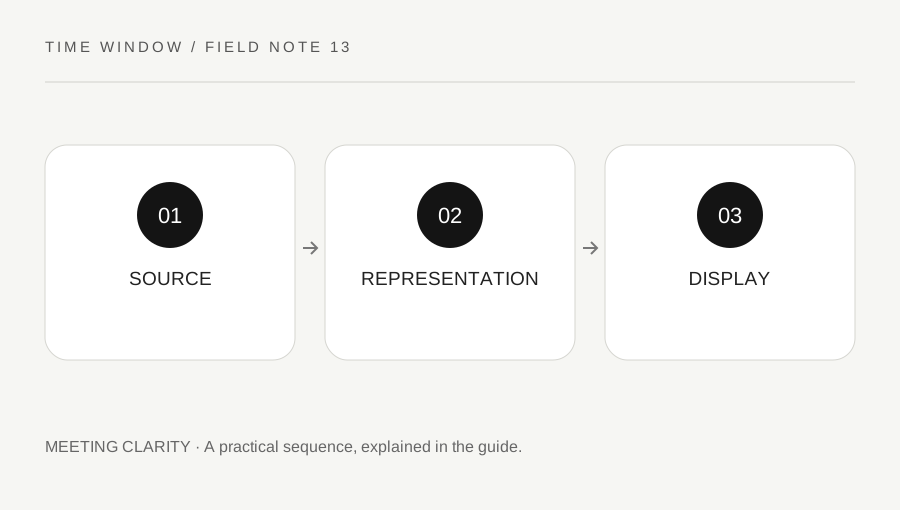
Original explanatory diagram. Numerical examples in this guide illustrate the reasoning; they are not a claim of hands-on testing.
Confirm the organizer’s intended appointment
Start with a written full date, local time and organizer zone. Compare that with what the original calendar application displays. An imported event showing a different hour may be a correct conversion into your own zone rather than an error. Check your calendar's display-zone setting before editing the event.
Keep the original file or invitation unchanged while investigating. A manual correction can make one occurrence look right while damaging the recurrence rule. If you are a recipient, ask the organizer to confirm the intended instant rather than creating a private version that no longer receives the organizer's updates.
Recognize the broad representation types
The iCalendar format distinguishes date-only values and several date-time contexts, including UTC, a named-zone relationship and floating local time. A floating time is not the same as one globally fixed instant. The correct interpretation depends on the event's purpose and its stored properties.
You do not need to edit the raw file to benefit from this distinction. Inspect the event details in a suitable calendar application and look for its zone or UTC reference. Where technical review is needed, preserve the file and consult the application's documentation or a knowledgeable administrator. Do not remove zone information merely because a raw field looks unfamiliar.
Compare a one-off and a series
Suppose an organizer confirms a one-off session at 09:00 in America/New_York. In a participant's calendar, another local hour can correctly represent that same instant. Use our converter for the specific date and compare the UTC reference. If those match, the display may be working as intended.
For a weekly series, also inspect later occurrences around seasonal clock changes. A series anchored to the organizer's local hour behaves differently from one anchored to a fixed UTC hour. A first occurrence that looks correct cannot prove the whole series was imported with its intended rule. Compare the recurrence policy, not only a screenshot of the opening event.
Correct the source of the mismatch
If a confirmed event is genuinely misinterpreted, use the calendar application's supported correction process. Keep the organizer informed and distinguish editing one occurrence from changing the series. A shared event should have a clear authoritative version so participants do not accumulate incompatible copies.
Our converter checks a single local occurrence and does not import, repair or send calendar files. Its result can help compare the intended instant, including missing or repeated local times. Calendar software, installed zone data and organizer instructions still matter. Record the original representation and the confirmed correction so the next import does not repeat the same uncertain manual adjustment.
Use a controlled import sample
Before migrating an entire calendar, test a one-off timed event, an all-day item and a recurring series with known expected dates. Include an occurrence near a seasonal transition where relevant. Compare the source and destination applications using the same display zone, then compare a second zone deliberately. Record which properties survive and which need a supported correction. Do not use a single convenient noon event as the only test; it may avoid the boundary cases that reveal a date shift or lost recurrence context. Keep the original files available until the migration has been verified.
Keep the calendar application and version in the migration note. If support is needed, provide a sanitized sample rather than publishing a complete private calendar containing names, locations or meeting links.
A practical checklist
Tick items for your own use. This checklist is saved only in this browser.
Questions that come up
Is a different displayed hour always wrong?
No. Your calendar may be displaying the same instant in your local zone. Compare the full date and a UTC reference before making a correction.
Should I edit the raw calendar file?
Use the calendar application’s supported interface unless you understand the format and intended properties. Preserve the source. Removing zone information can change the event’s meaning.
Can this tool repair an imported series?
No. It converts individual local occurrences. Use it to check selected dates, then resolve the source representation and recurrence policy in the relevant calendar software.
References & scope
Background references checked on 18 October 2026. The examples and practice exercises are original editorial explanations, not copied procedures or professional advice.